

Learning & Skills

Setting Up a New Device Safely: A Pre-Use Checklist

Share
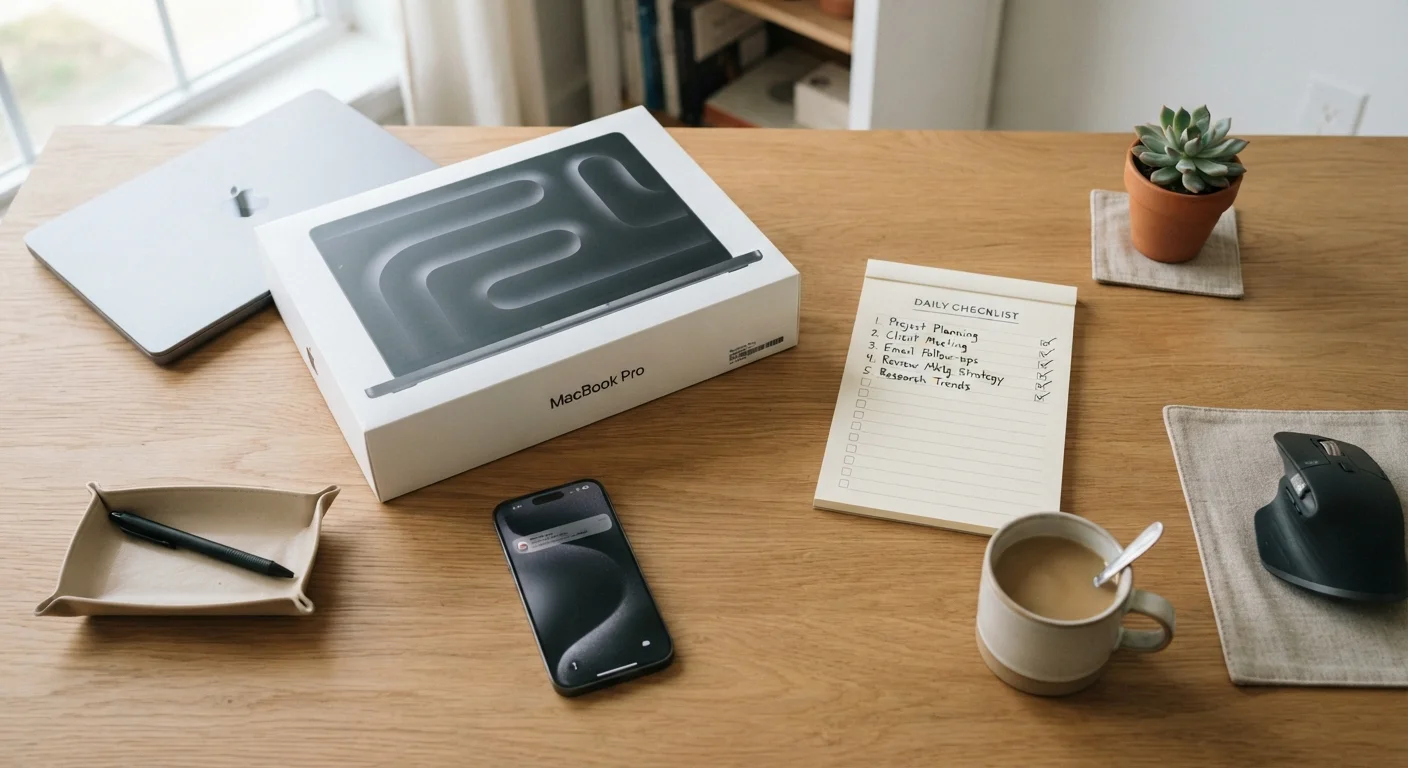
A new laptop and smartphone on a desk next to a checklist notepad, ready for setup

Key Takeaways

Run software updates before doing anything else — patches close known security gaps immediately.
A strong, unique password and two-factor authentication are your two most important account defenses.
Adjust privacy settings right away; default settings often share more data than most users realize.
Back up your device before you load it with data, not after.
Knowing your device's serial number and account recovery options can save you if something goes wrong.
30–60 min

Summary

18 items · 30–60 minutes

Why Setup Day Is Your Most Important Security Window

Unboxing a new phone or laptop feels exciting — but the first hour you spend with a device is also the hour it's most vulnerable. Out-of-the-box software is often months behind on security patches. Default settings frequently favor convenience over privacy. And without a backup in place, a single mishap on day one means lost data before you even got started.

Think of this checklist as your device's first health check. Working through it methodically — before you log into your bank, install apps, or sync your contacts — gives you a clean, secure starting point. Even if you've been using your new device for a day or two, it's not too late to run through these steps.

Just like the pre-session readiness checklist that helps students set up for focused study, a device setup checklist helps you start from a position of control rather than playing catch-up later.

Required

Password Manager

Generates and stores strong, unique passwords for every account so you never need to reuse one.

Required

Authenticator App

Provides time-based one-time codes for two-factor authentication, more secure than SMS codes.

Optional

External Hard Drive or USB Drive

Used for local offline backups independent of cloud services.

Required

Cloud Backup Service

Automatically backs up your files, photos, and settings to remote servers for easy recovery.

The Full Setup Checklist

Work through each group below in order. The groups are sequenced so that each step builds on a secure foundation from the one before it. Check off items as you go — rushing through or skipping sections can leave gaps you won't notice until something goes wrong.

First Power-On

Run all available software and operating system updates before doing anything else. Must
Set the device language, region, and time zone correctly to avoid syncing errors later. Must
Connect to a trusted private Wi-Fi network rather than a public or open hotspot during initial setup. Must

Account & Password Security

Create or sign in to your account using a strong, unique password — not one reused from another service. Must
Enable two-factor authentication (2FA) on your primary account immediately; our guide on why one password is no longer enough explains how it works. Must
Set up a device PIN, passcode, or biometric lock (fingerprint or face recognition) as a screen lock. Must
Record your account recovery options — backup email, phone number, or recovery codes — and store them somewhere safe offline. Must

Privacy Settings

Review location permissions and disable them for any apps that don't genuinely require your location. Must
Turn off any diagnostic or usage-data sharing options you're not comfortable with under Settings > Privacy. Should
Review which apps have access to your camera and microphone and revoke unnecessary permissions. Must
Disable ad personalization or limit ad tracking if your device or platform offers this option. Nice to have

Backup & Recovery

Enable automatic cloud backup or set up a local backup to an external drive before loading data onto the device. Must
Note your device's serial number and store it somewhere you can access it even without the device. Should
Confirm that Find My Device (or equivalent) is switched on so you can locate or remotely wipe the device if it's lost. Must

App & Storage Hygiene

Uninstall any pre-installed apps (sometimes called bloatware) you won't use to reduce clutter and potential security surface. Should
Only download apps from the device's official app store and check permissions before confirming installation. Must
Enable automatic app updates so security patches are applied without manual effort. Should
Check available storage and plan how you'll manage files — photos, downloads, and offline content can fill a device quickly. Nice to have

Don't Skip Updates on Day One

A brand-new device ships with software that was finalized weeks or months before you opened the box. In that time, security researchers may have discovered and disclosed vulnerabilities that attackers can exploit. Installing all available updates the moment you power on is the single highest-impact step in this checklist — it closes known gaps before your device touches any sensitive data.

Building Good Habits From Day One

Completing this checklist is a strong start, but device security is an ongoing practice, not a one-time event. Over time, apps accumulate, permissions creep, and software drifts out of date. Revisit your privacy settings and installed apps every few months to stay ahead of changes.

For a deeper look at everyday habits that protect your accounts and data well beyond setup day, see our guide on digital security habits that actually make a difference. And if you've ever wondered why a device that once felt fast starts to drag, ways your device slows down over time explains the real causes — many of which begin at setup.

Public Wi-Fi Is a Risk During Setup

Avoid completing your initial device setup on a public or open Wi-Fi network — such as in a café, airport, or hotel. Unencrypted networks can expose account credentials and personal information to other users on the same connection. Finish setup on a trusted private network, then connect to public Wi-Fi only after your security settings are fully in place.

Treat your device setup the same way you'd treat any other important preparation task: methodically, unhurriedly, and with a checklist in hand. The time you invest now pays dividends in security, reliability, and peace of mind for as long as you own the device.

Learning & Skills Editorial Team is the collective byline for our editorial team and contributor network. Articles published under this byline or an editorial pen name are researched, written, and reviewed according to our editorial standards for clarity, consistency, and independence before publication.

View all articles by Learning & Skills Editorial Team →
Disclaimer: The content provided on our blog site traverses numerous categories, offering readers valuable and practical information. Readers can use the editorial team’s research and data to gain more insights into their topics of interest. However, they are requested not to treat the articles as conclusive. The website team cannot be held responsible for differences in data or inaccuracies found across other platforms. Please also note that the site might also miss out on various schemes and offers available that the readers may find more beneficial than the ones we cover.